

A bare asset register tells you that a laptop exists and where it lives. It rarely tells you the one thing you actually needed at the moment you asked: when the warranty runs out, what it cost, which supplier to chase, or whether it is still in working order. That missing detail is the difference between a list of things and a register you can genuinely manage from.
Custom fields are how you close that gap. They let you record the details that matter to your organisation against every asset, without bending the software into shapes it was not built for. The skill is not in adding fields — that part takes seconds — but in choosing the right ones, keeping their values tidy, and resisting the temptation to capture everything you can imagine.
What a custom field actually is
Every asset already carries a handful of built-in details: a name, a tag number, a category, a location, a department. A custom field is any extra piece of information you decide is worth holding against each asset — a serial number, a purchase date, a supplier, a warranty expiry. In Find Asset you define these fields once, and from then on they appear on every asset form, ready to be filled in. They become part of the asset's record just like the built-in details, which means you can search, filter and report on them.
The important shift is that custom fields are yours to shape. No two organisations track the same things: a school cares about the room and the funding grant, a workshop cares about calibration dates and service intervals, a rental firm cares about the customer currently holding the item. Rather than forcing your reality into someone else's template, you describe the details that matter to you and let the register hold them. That flexibility is the point — but it is also exactly why a little discipline pays off.
The fields most organisations end up wanting
A small set of fields turns up again and again because they answer the questions asset owners most often face. Serial number is the manufacturer's own identity for the item, invaluable for warranty claims, insurance and theft reports. Purchase date and purchase cost underpin depreciation, budgeting and any conversation with finance. Supplier tells you who to contact for a replacement or a repair. Warranty or expiry date lets you act before cover lapses rather than after. Condition and model round out the picture, capturing what the item is and how well it is holding up.
None of these is compulsory, and you should not treat the list as a checklist to complete in full. The right fields are the ones tied to a decision you actually make or a report you actually run. If nobody in your organisation ever asks who supplied an item, the supplier field is just an empty box that makes every asset form longer. Start from the questions you need answered — what is due for renewal, what did we spend last year, what needs replacing — and let those questions choose your fields for you.
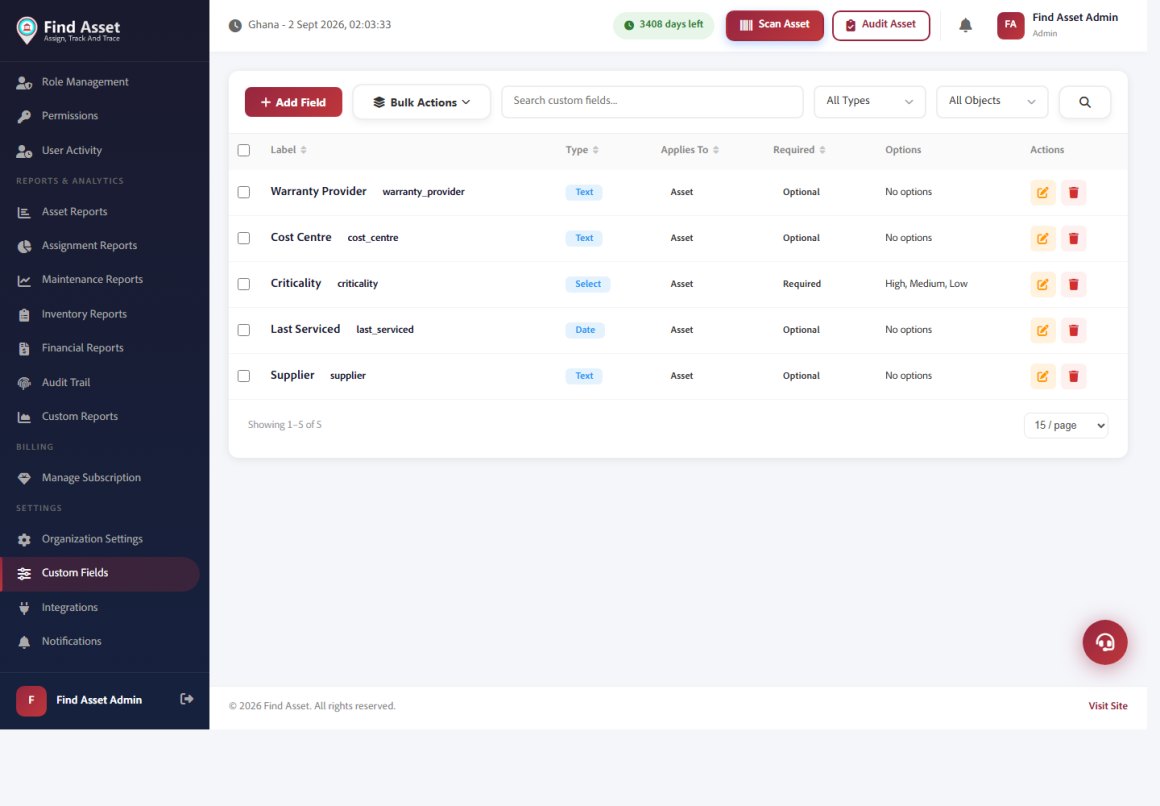
Find Asset does not lock you into a fixed set of fields. As the screen below shows, you define your own custom fields — a text box for a warranty provider, a cost centre, a Criticality dropdown, a service date — and choose the type and whether each is required. From then on they appear on every asset, so the register captures exactly the data your organisation runs on, not just the defaults.
The discipline of not over-collecting
The most common mistake is not capturing too little but capturing too much. Every field you add is a field someone has to fill in, on every asset, forever — and a field that is only sometimes completed is worse than no field at all, because you can never trust what a blank means. Was the value genuinely unknown, or did somebody simply skip it? A register riddled with half-filled fields quietly loses the very reliability that made it worth building.
So treat each new field as a small ongoing cost, not a free addition. Before adding one, ask who will populate it, whether they will have the information to hand at the moment they create the asset, and what decision the field will inform. If the honest answer is "it might be useful one day", leave it out; you can always add it later when the need is real, and adding a field to an existing register is painless. A lean set of fields that are always completed beats a sprawling one that is mostly empty, every single time.
Standardise values so fields stay reportable
A field is only as useful as its values are consistent. If condition is a free-text box, one person types "Good", another "good", a third "OK" and a fourth "fine" — and now you cannot count how many assets are in good condition without cleaning the data by hand first. The moment a field feeds a report, free text becomes a liability. This is the everyday face of data quality: not an abstract ideal, but the difference between a filter that works and one that misses half your assets.
The fix is to constrain the values wherever a field has a knowable, repeatable set of answers. Condition should be a dropdown — New, Good, Fair, Poor, Retired — not a blank line. Supplier should be chosen from a list you maintain, so "Acme Ltd" and "ACME Limited" never split into two. Reserve free text for the genuinely one-off notes that no list could anticipate. Every value you turn from typing into choosing is a value you will later be able to filter, count and trust, which is the whole reason the field exists.
Turning fields into filters and reports
Well-designed custom fields quietly transform what your register can do. Once warranty expiry is a proper date field, "show me everything whose cover lapses in the next ninety days" becomes a filter rather than a spreadsheet afternoon. Once purchase cost is captured consistently, the total value of a department's assets is a single report. Once condition is a clean dropdown, you can pull a list of everything marked Poor and plan replacements before things fail. The details you record are the questions you can later ask.
This is where the earlier discipline repays itself. Because the values are standardised, the filters return complete, trustworthy answers instead of the partial ones that erode confidence. In Find Asset you can combine custom fields with categories, locations and departments to slice the register precisely — every projector in the Accra office, bought before last year, still under warranty, in fair condition or worse. That kind of question is impossible against a plain list, and effortless against a register whose fields were chosen and tidied with a little care.
| Poor field design | Good field design |
|---|---|
| Condition as free text ("good", "OK", "fine") | Condition as a dropdown: New / Good / Fair / Poor |
| Supplier typed by hand each time | Supplier chosen from a maintained list |
| Warranty stored as a text note | Warranty as a real date you can filter by |
| Dozens of fields, most left blank | A few fields that are always completed |
| Cost written as "about 3k" | Cost as a number you can total |
Getting custom fields right
- Capture only fields tied to a real decision or report — an empty box helps no one.
- Serial number, purchase date and cost, supplier, warranty, condition and model cover most needs.
- Use dropdowns and lists over free text so values stay countable.
- A blank field you cannot interpret is worse than no field at all.
- Well-chosen fields become filters, totals and renewal reminders later.
Getting started without overthinking it
You do not need to design the perfect field set before you begin. Start with the two or three fields you already know you need — usually serial number, purchase cost and warranty — and make sure their values are standardised from day one. It is far easier to add a field to a growing register than to clean up an inconsistent one after the fact, so the early effort goes into shaping values well, not into anticipating every future need.
If you are still setting up the foundations, it helps to have your categories, locations and departments in order first, since custom fields work best layered on top of a tidy structure. From there, the getting started guide walks through creating your first assets. Add fields as real questions arise, review them occasionally, and retire any that nobody fills in — a field set should stay as lean and honest as the register it serves.
Fields that earn their place
Custom fields are what lift an asset register from an inventory into a management tool. The craft is in restraint and consistency: capture the handful of details that answer real questions, standardise their values so they stay reportable, and resist filling your forms with boxes nobody completes. Do that, and every field you keep becomes a filter you can trust, a total you can pull, and a renewal you can catch in time.
The register you build this way rewards you quietly, every time you need an answer fast and it is simply there. If you would like to define your own fields and see how they sharpen your reports, you can start a free 14-day trial and shape your register around the details that matter to your organisation. Begin lean, keep the values clean, and let the fields you truly use earn their place.