

Almost every organisation that decides to get serious about asset management already has a spreadsheet. It might be a single tab someone in finance has nursed for years, or a scatter of files sitting on three different laptops with names like "assets_final_v2_USE THIS ONE". That spreadsheet is genuinely valuable. It represents real institutional knowledge that no vendor can hand you. But it is also the single most common reason a new system launch goes sideways, because the temptation is to dump it straight in and hope the software quietly sorts out the mess for you.
It will not. A messy import produces a messy database, and a messy database is harder to fix than the spreadsheet ever was, because the errors are now spread across thousands of live records instead of sitting in one file. The good news is that cleaning an asset list is not complicated work; it is just methodical. Spend an unhurried afternoon preparing the file properly and your first import will be clean, your reports will make sense from day one, and you will avoid the demoralising job of untangling duplicates six weeks later. This guide walks through exactly how to do that.
Start by consolidating into one file
Before you clean anything, gather everything into a single spreadsheet. If your assets currently live across departmental files, an old accounting export and a couple of stock-take sheets, copy them all into one workbook, one row per asset. Do not try to import from five files in five sittings. You will lose track of what has already gone in, and that is precisely how duplicates are born: the same projector arrives twice because it appeared on two different lists that nobody cross-checked before uploading them separately on different afternoons.
As you consolidate, add a temporary column called "source" and note where each row came from. It costs nothing and it is invaluable later when a record looks wrong and you need to know which original file it came from and who last owned it. You can delete the column before import, or simply leave it out of the mapping step. Think of it as a paper trail for your own sanity: when two rows disagree about the same laptop, the source column tells you instantly which version to trust.
Fix the columns before you fix the rows
A good import file has one clear piece of information per column. The classic problem is a single "Description" column that reads "Dell laptop, Finance, Accra office, John Mensah". A human understands that instantly; a database cannot split it apart reliably. Break that into separate columns: asset name, category, location, custodian. It is tedious for the first few dozen rows and then it becomes fast, because most of the values repeat and you can copy them down whole blocks at a time rather than retyping the same office name over and over.
Decide your column headings up front and keep them consistent. At minimum you want a name, a category, a location, a custodian and a unique tag or asset number. Purchase date, purchase cost and serial number are worth capturing if you have them, because they unlock depreciation and warranty reporting down the line that is painful to backfill later. If you are not yet sure how these fields fit together, our guide to building a proper fixed asset register explains what each one is for.
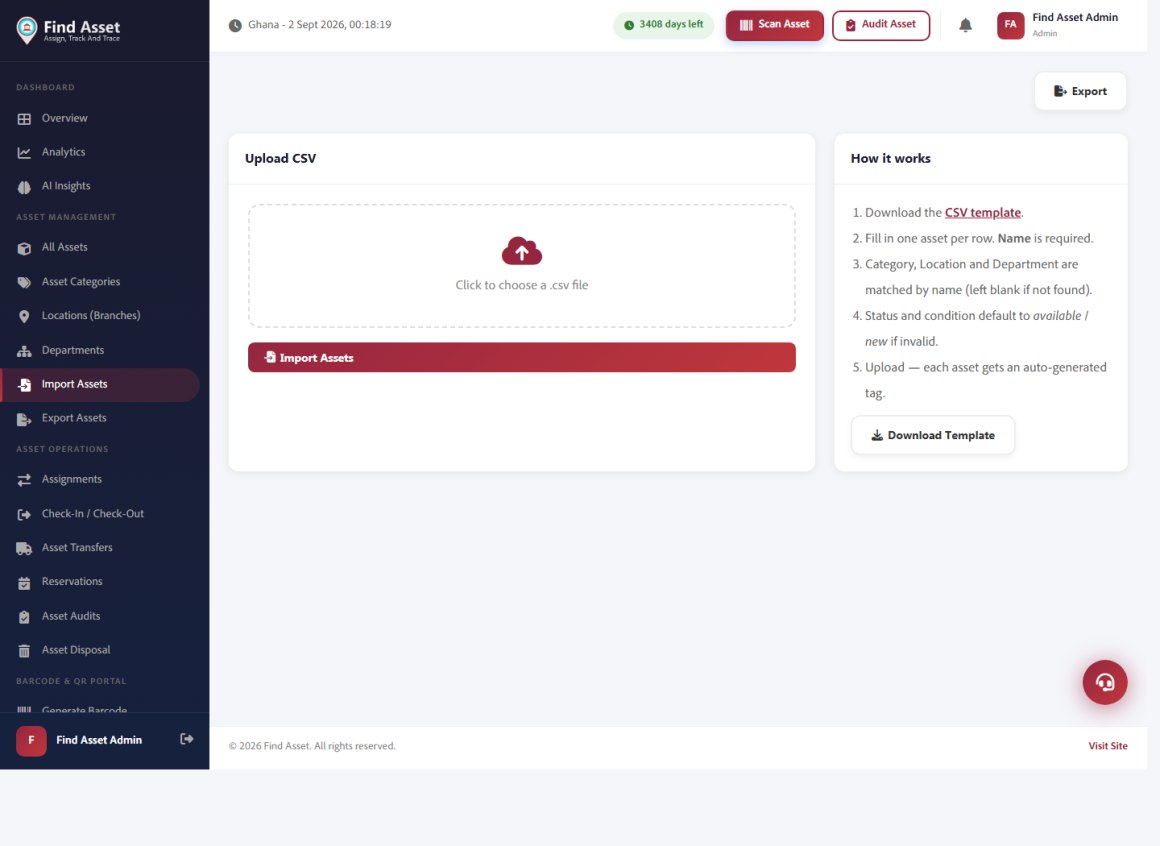
You do not start from an empty system. Find Asset's import tool (below) takes a CSV, matches your columns to asset fields — category, location and department by name — and brings your whole register in at once, auto-generating a tag for anything missing one. A download-template link keeps the format right, so migrating from a spreadsheet is minutes, not a re-keying marathon.
Give every asset one unique tag
The most important column in your entire file is the unique identifier. This is the value that lets the system tell one asset from another, and it must be genuinely unique and never blank. If your spreadsheet already has asset numbers, check that none of them repeat before you trust them. If it does not, generate them now using a simple, consistent scheme such as a short location prefix and a running number, so that the tag itself carries a hint of where the item belongs the moment anyone reads it aloud.
Resist two common mistakes. The first is using a serial number as your primary tag; serials are useful but they are manufacturer-controlled, sometimes duplicated across product lines, and easy to mistype from a tiny sticker. The second is reusing a number that once belonged to a disposed asset. Once a tag is retired, leave it retired, or your history will collapse two different items into one confusing record. A quick way to catch repeats in a spreadsheet is conditional formatting that highlights duplicate values in your tag column before you go any further.
Signs your file is ready to import
- Every row has a unique tag or asset number, with no blanks and no repeats.
- One piece of information sits in each column, with consistent headings across the sheet.
- Category, location and custodian values are spelled the same way every time.
- Dates use a single format and costs contain only numbers, no currency symbols.
Standardise your categories, locations and names
Software treats "Laptop", "laptops", "Lap top" and "Notebook" as four different categories. That is how a register ends up claiming you own forty categories of thing when you really own eight. Before importing, standardise the spelling and casing of every value in your category, location and custodian columns. A pivot table is the fastest way to see this: it lists every distinct value in a column, and the typos jump straight out at you, so you fix them once in the sheet rather than chasing them one by one inside the live system afterwards.
Agree a short, fixed list for categories and locations and force every row onto it. In a Ghanaian context this matters for locations especially, where the same office might be written as "Accra", "Accra HO", "Head Office" and "HQ" across different source files depending on who typed it. Pick one, and use it everywhere without exception. The same discipline applies to custodian names, which should follow a single format such as first name and surname, so that reports group a person's assets together instead of scattering them under three near-identical spellings.
Clean the dates, costs and numbers
Numeric and date fields are where silent errors hide. A purchase cost written as "GHS 4,500" is text, not a number, and the moment it lands in a cost field it will either be rejected or import as zero, quietly deflating the value of your whole register. Strip currency symbols and thousands separators so the cell contains only the figure. Do the same for any quantity or measurement columns, because a stray unit or a trailing space is enough to make a perfectly good number behave like unreadable text on import.
Dates are the other trap. Decide on one format for the whole file and apply it ruthlessly, because a mix of day-month-year and month-day-year will scramble any date past the twelfth of the month and you may never notice until a depreciation schedule looks absurd. A single unambiguous format such as year-month-day removes the guesswork entirely. The table below shows the messy values you will typically meet and what to convert them to before the file goes anywhere near the import screen.
| Field | Messy value in the wild | Clean it to | Why it matters |
|---|---|---|---|
| Purchase cost | GHS 4,500.00 | 4500 | Numbers-only imports; symbols cause errors or zeros |
| Purchase date | 5/6/24 | 2024-06-05 | A single unambiguous format stops date scrambling |
| Asset tag | (blank) or duplicate | ACC-0142 | Unique, never empty; the key the system tracks by |
| Category | Lap top / laptops | Laptop | One spelling keeps reports and counts honest |
| Serial number | n/a or blank | Leave truly empty | Empty beats a placeholder that reads as real data |
Handle blanks honestly
Empty cells are fine; fake data is not. If you do not know an asset's purchase date, leave the cell blank rather than inventing one, because a made-up date will quietly corrupt your depreciation figures later and nobody will remember it was a guess. The exception is any field the system treats as required, such as the tag or the asset name. Those must be filled with something real. Everything else can be enriched over time once the asset is live and someone scans it during an audit and fills in the gap on the spot.
It helps to run a final pass filtering each column for blanks. This shows you at a glance how complete your data really is, and it lets you make a deliberate decision about each gap instead of discovering it mid-import when the software rejects a batch. Some gaps you will choose to fill immediately; others you will knowingly leave for the field team to close later. Either way, the decision is yours and conscious, not a surprise sprung on you halfway through a large upload.
Do a small test import first
Never run your full file as the first import. Copy ten or fifteen representative rows into a small test file and import those. Then look hard at the result inside the system: are the categories landing in the right place, are dates showing correctly, did the custodians match to real people? Catching a mapping mistake on fifteen rows takes two minutes to undo and re-run. Catching it on three thousand rows is a very long evening of deletion, and possibly a support ticket, when a small sample would have shown you the problem in a heartbeat.
When you map columns during import, read every mapping rather than trusting the automatic guess. The software matches your headings to its fields as best it can, but it cannot know that your column called "Owner" means custodian rather than the vendor who supplied the item. Confirm each one deliberately. If your assets carry physical labels, this is also the moment to think about how tags and scannable codes relate, and our comparison of QR codes and 1D barcodes is a useful companion read.
Run the full import and verify the count
With the test passed and mappings confirmed, import the full file. The single most useful check afterwards is a count: if your cleaned spreadsheet had 1,284 rows, your system should now show 1,284 assets. A mismatch usually means duplicate tags were merged or some rows were rejected, and the import report will tell you which ones and why. Read that report properly; it is not decoration, and the two minutes it takes to scan will point you straight at the handful of rows that need a second look rather than the whole file.
Then spot-check a handful of records across different categories and locations. Open them fully and confirm the cost, date and custodian all look right against what you know of the real item. Assets imported cleanly the first time rarely need touching again, so a few minutes of verification now saves real work later when a report has to be trusted in front of an auditor. Once you are confident, the natural next step is to schedule your first physical check, and our walkthrough on how to run your first asset audit covers exactly that.
Bringing it together
None of this is glamorous work, but it is the difference between a system you trust and a system you quietly stop using within a quarter. The pattern is simple: consolidate into one file, split your columns, guarantee unique tags, standardise your values, clean your numbers and dates, test small, then import for real and verify the count. Follow it once and your register starts life clean, which is the only version of a register worth having, because a register you cannot trust is just an expensive spreadsheet with extra steps.
That preparation is exactly what Find Asset is built to reward. Its import tool lets you map your own spreadsheet columns to the right fields, flags duplicate tags before they cause trouble, and shows you a clear report of what came in and what did not. If you are ready to turn that tired spreadsheet into a live, searchable register, start a free 14-day trial and bring your file with you. For the wider background, the overview of data cleansing is worth a look too.