
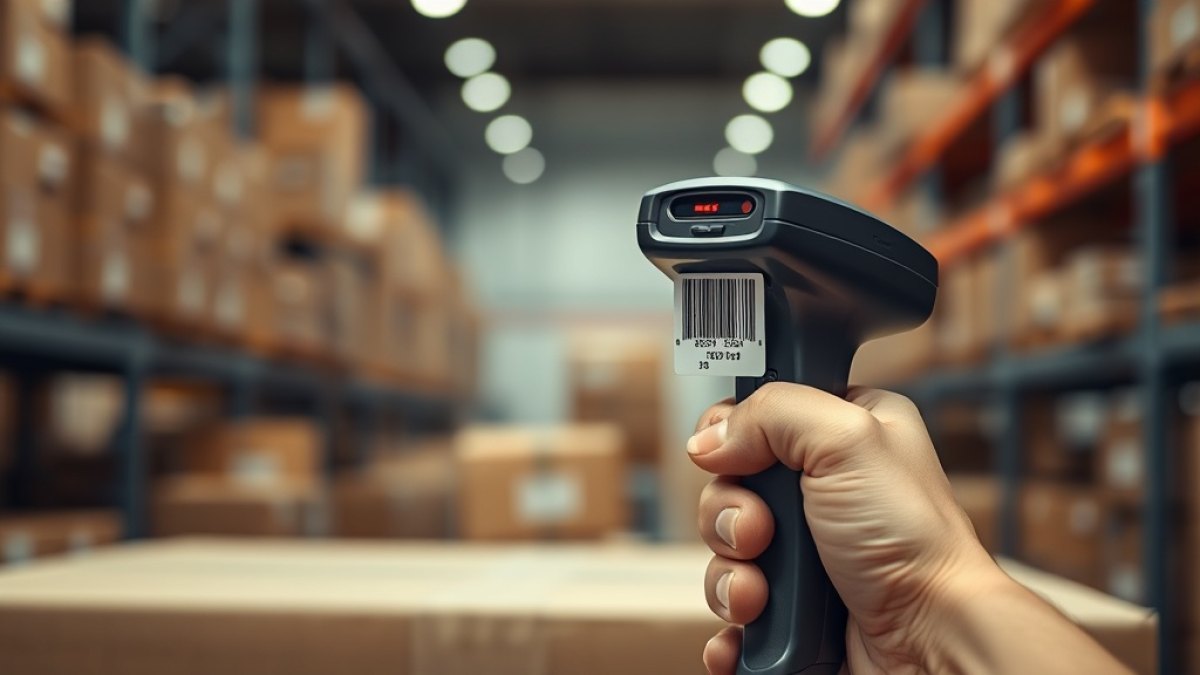
A stock-take stalls the moment a scanner beeps in the wrong tone, or worse, stays silent. One label refuses to read, the person holding the device tilts it, wipes it, tries again from a different angle, and eventually gives up and types the number by hand. Multiply that by a few hundred assets and an audit that should have taken an afternoon spills into a second day. The frustrating part is that a barcode that will not scan almost never fails for a mysterious reason. It fails for one of a handful of very ordinary reasons, and each one has a quick test.
This checklist works from the most common causes to the rarest, because that order saves you the most time. Before you assume the scanner is broken or the software is wrong, work down the list in order. In our experience helping teams across Ghana and the wider region, roughly nine in ten "won't scan" complaints are solved in the first three steps, and none of them require buying new hardware. Keep the failing label and a known-good label side by side as you go, so you always have something to compare against.
1. Confirm the code is actually damaged or dirty first
Start with the cheapest possibility. A finger smudge, a film of dust, a smear of oil from a workshop, or condensation on a cold-store label will all scatter the laser or confuse the camera. Wipe the code gently with a dry, lint-free cloth and try again. If the label lives somewhere harsh, a thumbnail-sized scratch across the bars is enough to break the read, because the scanner needs every bar and space intact to reconstruct the number.
Hold the label flat under good light and look at it the way the scanner does. Are any bars flaking, faded, or lifted at the edges? Is the surface curved tightly around a cable or a bottle so the bars bend out of the scanner's focal plane? A code printed on a shiny or laminated surface can also bounce light straight back into a laser scanner, producing glare that reads as nothing at all. Tilt the label about fifteen degrees to kill the reflection and see if the beep returns.
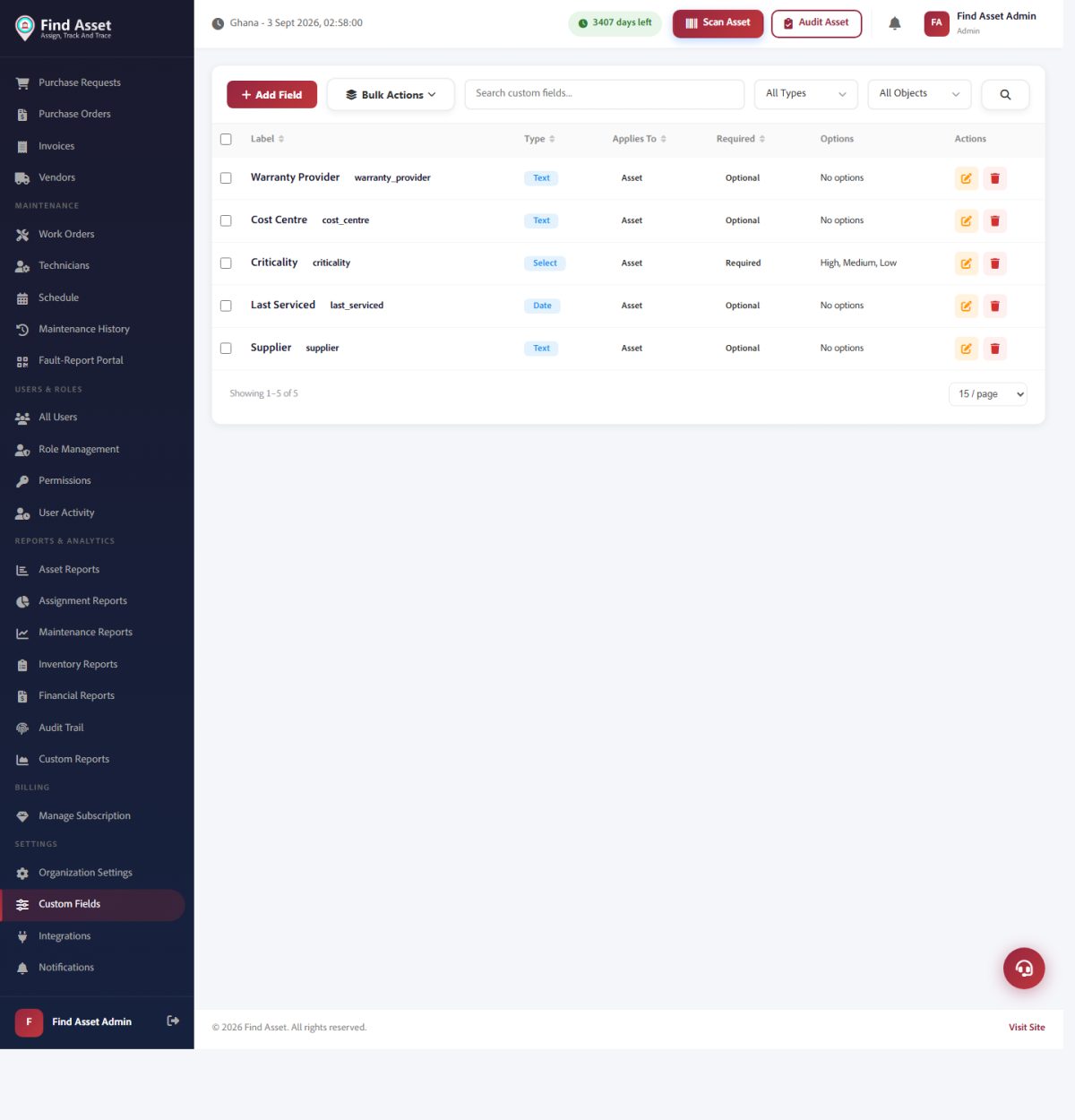
A barcode that will not scan is sometimes a data problem, not a print problem. Find Asset's field configuration (above) controls what each tag actually encodes, which is worth checking alongside the physical causes in this list.
2. Check the quiet zone and the print quality
The single most common design fault is a missing quiet zone. Every barcode needs a clear margin of blank space on both ends, typically at least ten times the width of the narrowest bar. If someone has printed the code too close to a border, another label, or the edge of the equipment, the scanner cannot find where the code begins and ends. Look for at least a few clear millimetres of white on the left and right of the bars. If it is crowded, that is very likely your culprit.
Print quality is the next suspect. A thermal printer with a worn printhead, a low-quality ribbon, or the wrong darkness setting produces bars that are too thin, too fat, or streaked with white gaps. Bars that have merged into one another, or spaces that have filled in, destroy the ratios the scanner measures. If you are printing your own tags, our walkthrough on designing a clean Zebra label covers darkness, print speed and element width in practical detail.
Quick print-quality tests
- Bars look grey or streaky rather than solid black? Increase darkness or replace the ribbon.
- Narrow bars have disappeared or fused together? Slow the print speed and clean the printhead.
- Code is tiny and dense? You may be below the scanner's minimum X-dimension; print it larger.
- No white margin either side of the bars? Redesign the label to add a quiet zone.
3. Rule out contrast and colour problems
Scanners read contrast, not colour as we see it. The classic mistake is a code printed in a light colour, or on a coloured or metallic background that does not contrast enough with the bars. The safe rule is black bars on a white background. Red bars vanish under a red laser, and dark-on-dark combinations, such as black bars on a dark blue asset, give the scanner nothing to distinguish. If your label sits directly on bare metal, use a white-faced label rather than printing onto the metal itself.
Lighting in the room matters too. Very dim storerooms starve camera-based scanners, while harsh direct sunlight can wash out an image sensor completely. If a label reads fine on the desk but fails in the field, the environment is a strong suspect. Move into even, indirect light and retest before you blame the tag.
4. Match the symbology to the scanner
Not every scanner reads every barcode type. A basic 1D laser scanner physically cannot read a 2D QR code or a Data Matrix, no matter how clean the print is, because it sweeps a single line rather than capturing a grid. If your labels carry QR codes and your handheld only shrugs, this is almost certainly why. An imager, by contrast, reads both. If you are still deciding which to standardise on, our comparison of QR codes versus 1D barcodes is worth a read.
Even within 1D codes, many scanners disable less common symbologies by default. Code 128 and Code 39 are usually enabled out of the box, but formats such as Codabar or Interleaved 2 of 5 may be switched off in the scanner's configuration. If one type of label reads and another does not, the symbology setting is the place to look. For a plain-English tour of the formats themselves, see our guide to barcode symbologies explained.
| Symptom | Likely cause | Fix |
|---|---|---|
| No beep on any label | Scanner not connected or in wrong mode | Re-pair the device and check the input focus |
| One label fails, others work | Damage, dirt or a bad print on that tag | Clean it, then reprint if needed |
| QR codes fail, bars work | 1D-only laser scanner | Use a 2D imager instead |
| Reads but wrong or extra characters | Wrong symbology or added prefix/suffix | Correct the scanner's data-format settings |
| Scans in hand, fails in software | Field not focused, or extra keystrokes | Click the input box; trim prefix/suffix |
5. Watch the distance and angle
Every scanner has a working range. Hold it too close and a laser cannot get a full sweep across the code; hold it too far and the bars blur below the resolution it needs. There is a sweet spot, often a few centimetres to a hand's width, that varies by model and by how large the code is printed. If a stubborn label suddenly reads when you change how far away you hold the device, the problem was never the label. Larger codes read from further away, which is one reason cramped, tiny tags cause so much grief on a busy shop floor.
Angle plays a part too. Scanning dead-on at ninety degrees invites glare on glossy labels, so a slight tilt often helps. Sweeping the beam smoothly across the whole width of the code, rather than stabbing at the middle, gives the scanner the complete signal it needs.
6. Check what happens after the beep
Sometimes the scan works perfectly and the problem is entirely in the software. If the device beeps but nothing appears, the cursor is probably not in the right field. A wired or Bluetooth scanner acts like a keyboard, so it types wherever the focus happens to be. Click into the correct input box and try again. If the wrong characters appear, or the number arrives with an unexpected letter on the front or a stray line break, the scanner has a prefix or suffix configured that your system is not expecting.
This is also where a well-designed system earns its keep. When a code genuinely cannot be read, no matter what you try, staff need a fast fallback. A good asset app lets someone type the tag number by hand and carry on, then flags that record so a fresh label can be reprinted later. That way one bad barcode never stalls an entire count, and you build a running list of tags that need replacing.
7. Prevent the next failure
Once a specific label is scanning again, spend two minutes stopping the same thing recurring. Standardise on one high-contrast, high-quality template, give it a generous quiet zone, and choose a tag material suited to where the asset actually lives, whether that is an air-conditioned office, a dusty yard or a cold room. Verify a sample from every print run before you apply the labels, rather than discovering failures weeks later mid-audit. Building tracking habits that last is covered well in our piece on asset tracking best practices.
It also helps to understand the underlying standard your codes follow, because that is what defines the tolerances your printer and scanner must meet. The background on barcodes is a useful primer if you want to know why quiet zones and X-dimensions matter as much as they do.
Bringing it together
Notice how few of these fixes involve spending money. A wipe with a cloth, a wider margin, a darker print setting, the right scanner type, a small change in distance, and a check that the cursor is in the right box will resolve the overwhelming majority of "won't scan" complaints. The discipline is simply to work down the list in order rather than guessing, so you spend your time on the cause that is actually present rather than the one you fear.
That reliable, boring predictability is exactly what Find Asset is built to protect. Clean label templates with proper quiet zones, a print centre that keeps every tag consistent, and a mobile scanner that accepts a manual fallback when a code is beyond saving all mean a single stubborn barcode never derails your day. If you would like to see it on your own assets, start a free 14-day trial and print a test batch this week.