
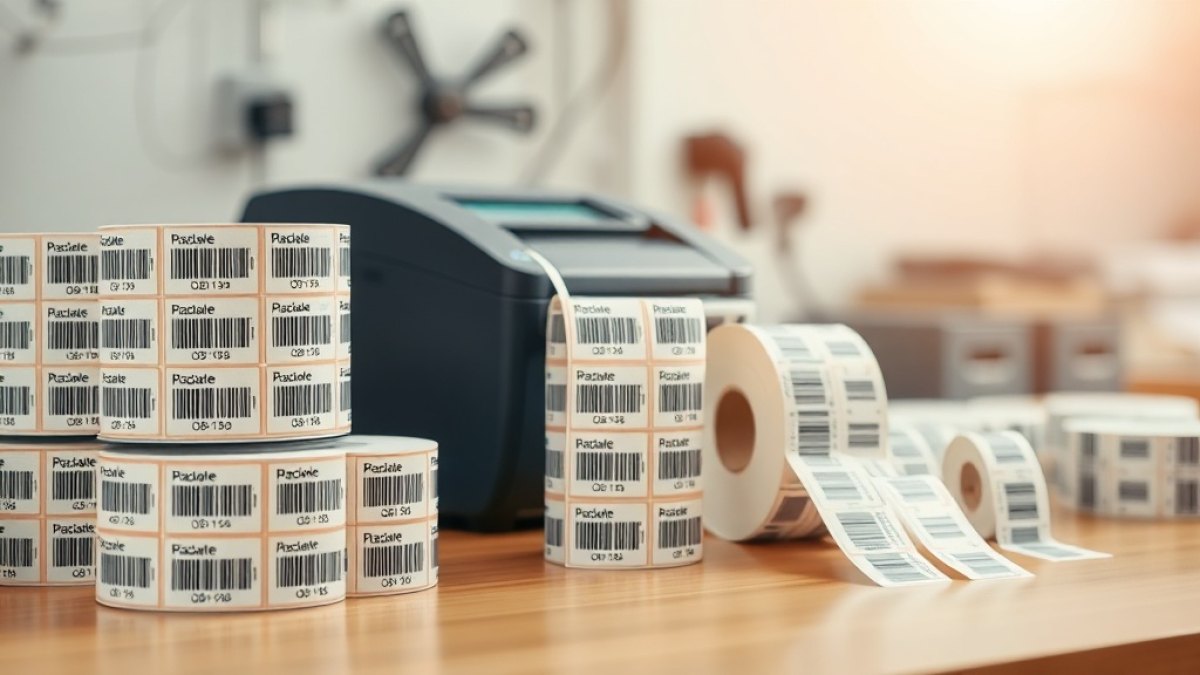
Most teams meet label printing one sticker at a time. Someone opens a design tool, types the asset tag, drags a barcode into place, hits print, peels the label, then starts again for the next item. It feels productive for the first ten labels. By the fiftieth, the typos have crept in, two assets share the same tag, and an afternoon has quietly disappeared. When a Ghanaian school, hospital or OMC needs to tag four hundred new items before an audit deadline, this manual rhythm is simply not fast enough.
The good news is that you never have to design a label more than once. Batch printing — often called variable-data printing — lets you build a single template, point it at a list of assets, and let the printer fill in the differences. The layout stays fixed; only the data changes from label to label. Understanding how this works turns a two-day tagging marathon into a twenty-minute print run, and it is the single biggest time-saver in any labelling workflow.
What variable-data printing actually means
A printed label is really two things stacked on top of each other. The first is the fixed part: your logo, the borders, the field headings like "Asset Tag" or "Department", and the overall size and position of everything. The second is the variable part: the specific tag number, the barcode, the location, the custodian's name. Variable-data printing keeps the fixed part constant and swaps the variable part for every record in your list.
Think of it like a mail-merge for physical tags. You design the envelope once, then a thousand different addresses flow through it. In label terms, you design one clean template, then your asset register — or a spreadsheet — supplies the rows. Each row becomes one label. A barcode field is not typed; it is bound to a column so that asset FA-0031 automatically renders a scannable FA-0031 barcode, and the next label renders FA-0032, and so on without anyone touching the keyboard.
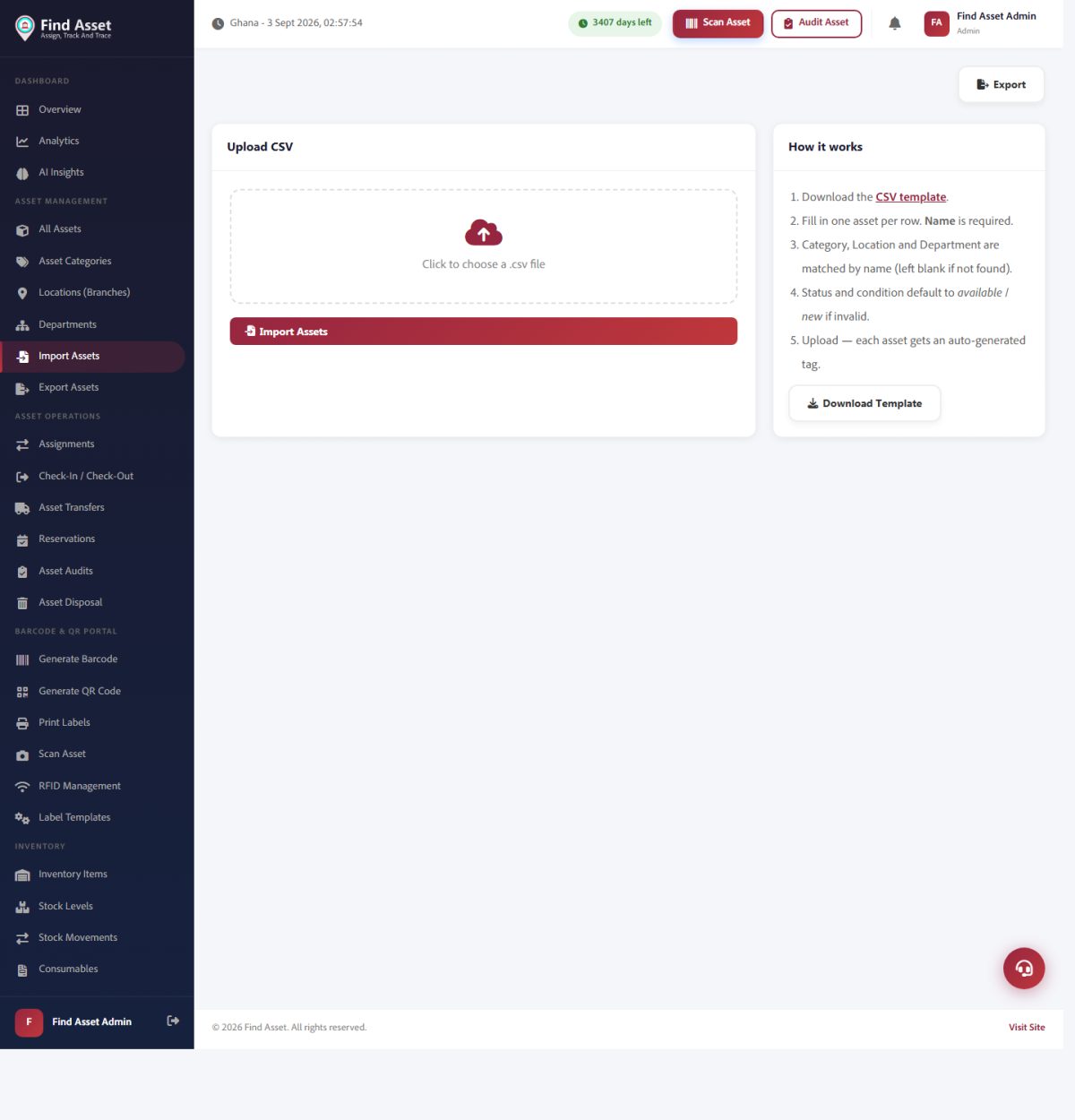
Printing hundreds of labels starts with hundreds of records. Find Asset's import screen (above) brings your asset list in from a spreadsheet in one pass, after which a single label design can be applied across the whole batch.
Design the template once, and design it well
Because a single template is reused hundreds of times, every decision you make is multiplied hundreds of times. A barcode placed two millimetres too close to the edge will fail to scan on every label, not just one. A font set too small will be unreadable across the entire batch. This is why the design stage deserves care even though it happens only once, and why an hour spent getting the first template right is the cheapest hour in the whole exercise.
Keep the fixed elements minimal and the variable elements generous. The barcode or QR code should own the largest clear zone on the label, with a quiet margin around it so scanners lock on cleanly. Bind each dynamic element to a named data field rather than typing a value. If you are new to laying out a thermal label, our walkthrough on how to design a clean Zebra label covers the spacing and font choices that survive a batch run.
Feed the printer from your asset list
The power of batch printing comes from the data source. Instead of typing four hundred tags, you connect the template to four hundred existing records. In practice this means one of three things: printing directly from your asset register so every selected asset produces a label, importing a spreadsheet of rows, or generating a numbered sequence such as FA-0001 through FA-0400 in one go. Each route removes the keyboard from the process, and with it the transposed digit that quietly assigns two assets the same identity.
Printing straight from a live register is the cleanest option because the labels always match reality — the same tag, spelling and location that the system already holds. If your data still lives in Excel, our guide on importing assets from a spreadsheet shows how to get it into a register first, so your labels inherit clean, deduplicated data rather than copying old errors onto adhesive. A messy spreadsheet printed at scale simply becomes a messy shelf, and unpicking it afterwards costs far more than cleaning the list up front.
Before you press print on a big batch
- Print one test label and scan it — confirm the barcode reads back the exact tag you expect.
- Check the media size in the template matches the physical label roll loaded in the printer.
- Verify your tag sequence has no gaps or duplicates before committing four hundred labels to it.
- Confirm the darkness and speed settings suit your label material, so nothing prints faint or smudged.
Why ZPL beats printing images
There is a slow way and a fast way to send hundreds of labels to a thermal printer. The slow way is to render each label as an image and send a picture to the printer — heavy, sluggish and prone to blurry barcodes. The fast way is to send ZPL, the native command language that Zebra and compatible printers understand. ZPL describes the label as instructions rather than pixels, so the printer draws crisp barcodes at full speed.
For a batch, this difference is enormous. A ZPL stream can carry hundreds of label definitions back to back, and the printer chews through them at its rated speed of several labels per second. The barcodes are generated by the printer itself, which means they are mathematically exact every time — no anti-aliasing, no scaling artefacts, no scans that fail at the loading bay. When you print from a proper label engine, ZPL is what is happening behind the scenes.
Choosing the right symbology for a batch
The code you print changes how much data each label can carry and how reliably it scans. For a big rollout it is worth picking deliberately rather than defaulting. A 1D barcode is compact and ideal when a label only needs to hold a short asset tag. A QR code holds far more and tolerates damage better, which matters for equipment that lives outdoors or takes knocks. RFID goes further still, letting you read many tags at once without line of sight when the count justifies the extra cost.
| Method | Best for | Speed for 400 labels | Data capacity |
|---|---|---|---|
| Manual, one at a time | A handful of ad-hoc labels | Hours, with errors | Whatever you type |
| Batch 1D barcode | Short asset tags, indoor assets | Minutes | Low (tag only) |
| Batch QR code | Rugged or outdoor assets | Minutes | High and damage-tolerant |
| Batch RFID smart label | High-value, fast-count inventory | Minutes, no line of sight | Encoded chip plus print |
If you are weighing the trade-offs for your own assets, spend a few minutes on the practical differences before committing a whole roll to one format. The wrong choice is cheap to fix on label one and expensive on label four hundred, because by then the tags are already stuck to equipment scattered across the building and putting it right means walking the whole floor again with a fresh reel and a peeling tool in hand.
Sequences, prefixes and avoiding duplicate tags
Batch printing shines when you let it generate the tag numbers for you. Rather than inventing tags by hand, define a scheme once — a prefix that identifies the organisation or site, followed by a zero-padded running number, for example LAB-0001 upward. The engine then produces the whole run without repeating or skipping a single value, which is the most common cause of two assets ending up with the same identity and the confusion that follows during every later count.
Padding matters more than people expect. If you print LAB-1 through LAB-400 without leading zeros, sorted lists misbehave and LAB-10 lands before LAB-2. Four fixed digits keep everything ordered and leave room to grow to nearly ten thousand assets under one prefix. Decide the width before the first batch, because changing it later means re-tagging everything you have already printed, and a scheme chosen carelessly on day one has a way of haunting an organisation for years.
A realistic workflow for a large rollout
Picture a hospital tagging every bed, monitor and pump across three wards. The team first cleans the asset list so each item has one record. They design a single durable label sized for their printer and label stock. They bind the barcode and the human-readable tag to the register fields, print one test label, and scan it to confirm it reads correctly. Only then do they select all the assets for a ward and send the whole batch.
Within minutes the printer produces a stack of labels in register order, so the person applying them walks the ward top to bottom without hunting for the right sticker. Because the labels came from the live register, there is nothing to reconcile afterwards — every tag on a wall already exists in the system, ready to be scanned during the next count. That closed loop is the whole point, and it is far harder to achieve when labels are typed one by one.
Bringing it together
Batch printing is not a luxury feature for large enterprises; it is the difference between labelling being a project you dread and a task you finish before lunch. Design the template once, feed it from clean data, let the printer generate exact barcodes in ZPL, and you remove the two things that ruin manual labelling: wasted time and human error. The habits scale — the same template that prints forty labels prints four thousand.
That batch workflow is the reason the label designer in Find Asset exists. Its label designer lets you build one template, bind fields to your register, generate sequenced tags, and print a whole batch to any Zebra-compatible printer in one pass. If you are ready to stop typing labels one at a time, start a free 14-day trial and print your first batch today. For the wider background, the overview of variable-data printing is a useful primer.